 ClipKeyboard
Language
Stop typing
the same thing twice
Save your bank details, address or go-to email opener once. In Messages, Mail, Safari or anywhere you type, it's one tap from the keyboard.
Every feature is free for your first 100 inserts.
Try it right here
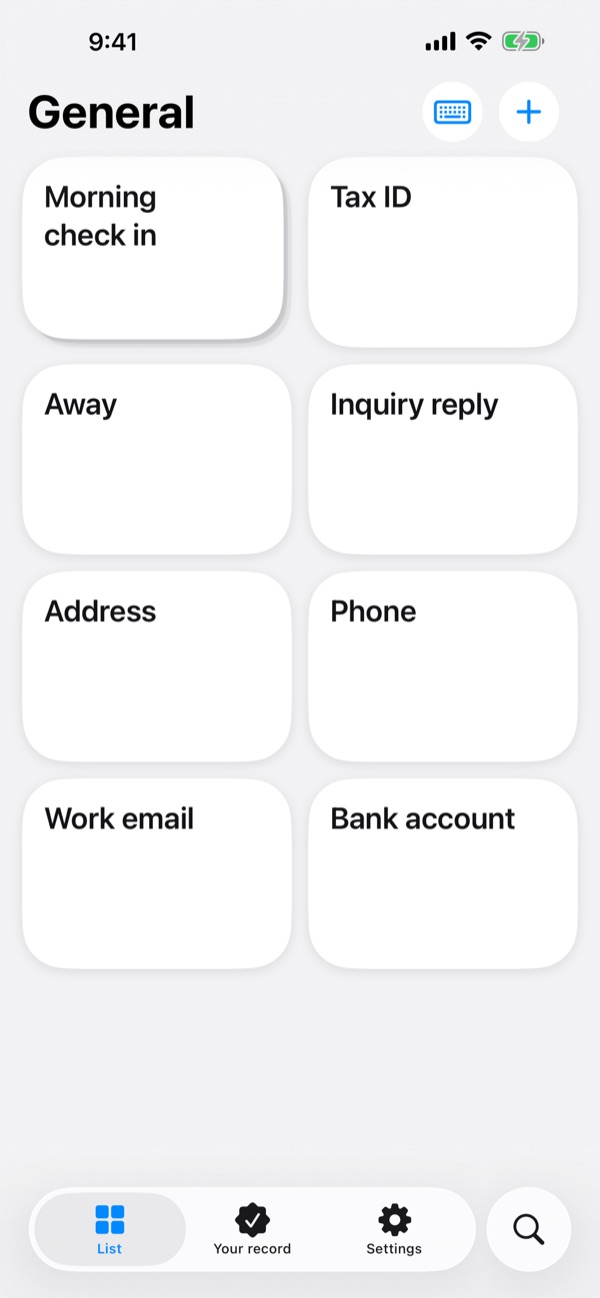
This is the app's own Keyboard preview screen. On your iPhone, this keyboard comes up anywhere you can type.
How many times did you type your account number today?
A friend asks where to send their share, so you open the bank app and copy the number. Then you type your delivery address letter by letter, again, and write the same greeting for every customer email. ClipKeyboard keeps those lines on the keyboard, ready to drop in with one tap.
Fill in only what changes
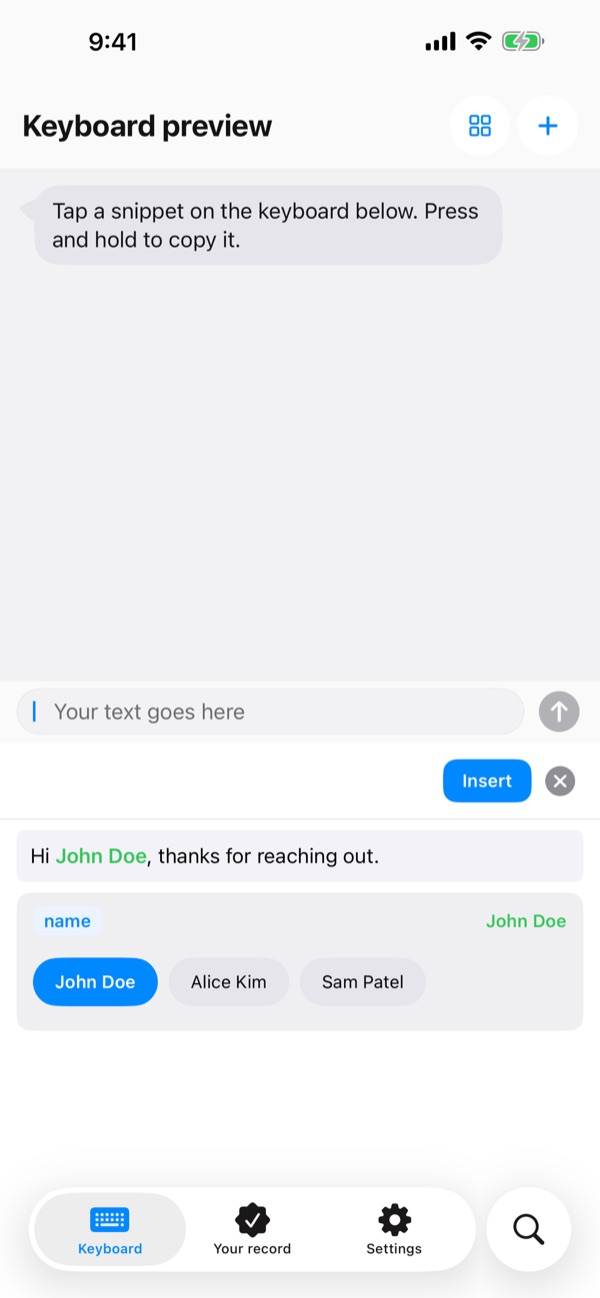
Templates leave the changing parts, like {name} or {date}, as blanks.
When you insert one, it asks for just the blanks, and you can pick a value you've used before.
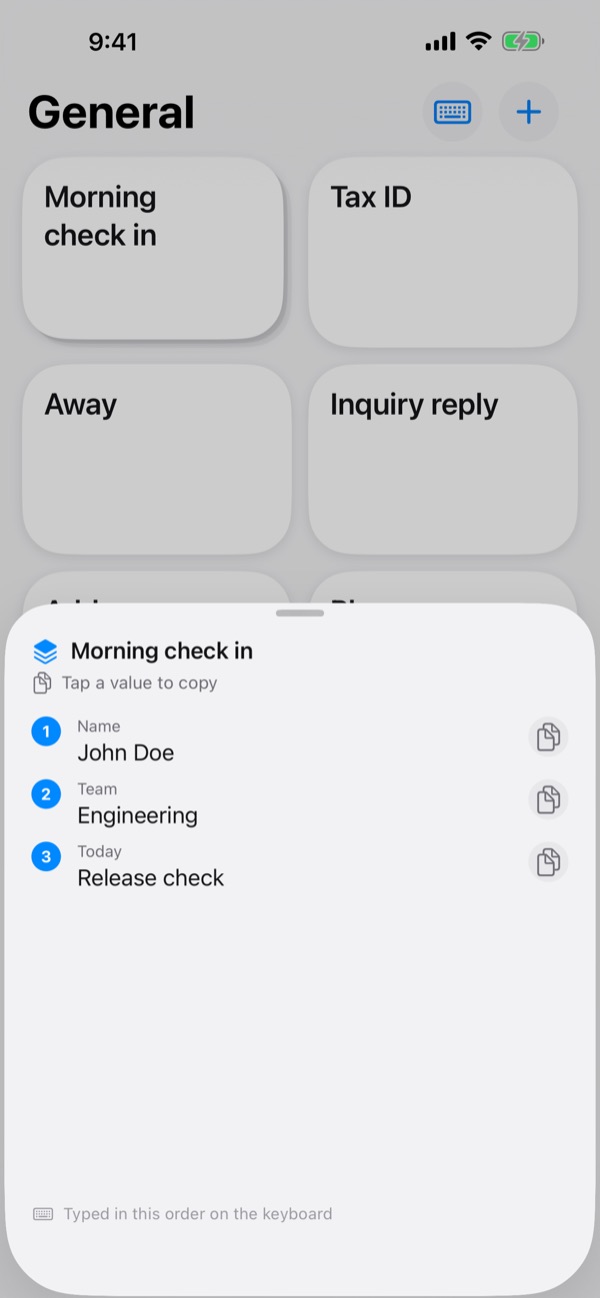
Several values, in order
A stack keeps several values, like name, team and today's task, on a single key.
Tap it to insert the current slot, then use the arrow beside it to move to the next.
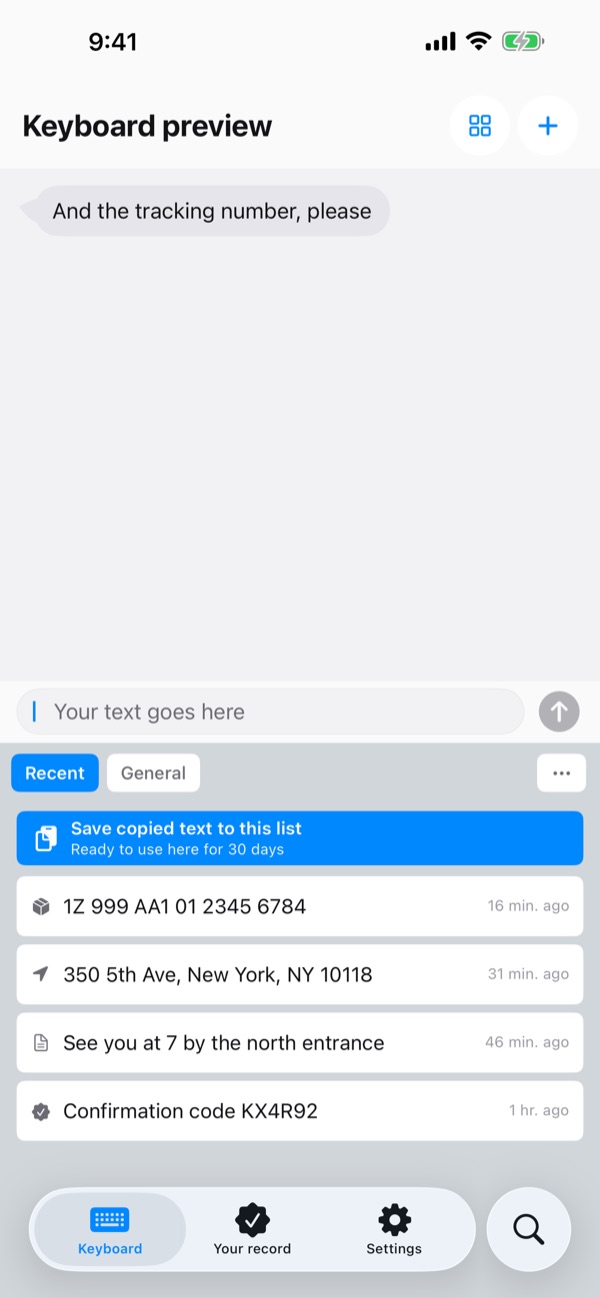
What you copy is on the keyboard too
The tracking number, address or phone number you just copied lands in the keyboard's Recent tab.
It recognizes emails, phone numbers, addresses, card numbers and IBANs and sorts them, so you find them again in a second.
Lock away the sensitive ones
Turn passport or card numbers into secure snippets locked behind Face ID.
Got an account number on paper? Snap a photo and swipe your finger over just the characters you need.
Three steps to start
- 1
Add the keyboard
Settings > General > Keyboard > Keyboards > Add New Keyboard, then pick ClipKeyboard.
- 2
Allow Full Access
The keyboard needs it to read the snippets you saved in the app. What you type never leaves your device.
- 3
Hold the globe to switch
In any app, touch and hold 🌐 on the keyboard, choose ClipKeyboard and tap a key.
What you can put on the keyboard
- Snippet
- Inserts exactly what you saved, line breaks and emoji included.
- Template
- Blanks in curly braces, like {name}, get filled each time you insert it.
- Stack
- Several values on one key. The arrow moves to the next slot.
- Secure snippet
- Goes in only after Face ID or Touch ID. (Pro)
- Image snippet
- Tap to copy the picture, then paste it into your message.
- Clipboard history
- Keeps what you copy, sorted by type, ready to use again.
- Scan text in
- Swipe over text in a photo to grab just that part. The photo isn't kept.
The full user guide is at m1zz.github.io/ClipKeyboard/en/tutorial.html.
Use it 100 times, then decide
Free
- Every feature until you've inserted snippets 100 times
- Everything you made keeps working after that
- New items: up to 10 snippets, 3 templates, 3 stacks and 5 images
- 50 clipboard history items
Plus · Pro
- Plus: unlimited snippets, templates, stacks and images, 100 clipboard history items
- Pro: everything in Plus, plus iCloud backup, Face ID lock and sync across devices (beta)
Each comes as a yearly subscription or a one-time lifetime purchase.
Your snippets are never deleted, even if you don't pay or a subscription ends. No ads.
Questions
My snippets don't show up on the keyboard.
Full Access is probably off. Go to Settings > General > Keyboard > Keyboards > ClipKeyboard and turn on Allow Full Access.
Can I keep my usual keyboard?
Yes. After a snippet goes in, ClipKeyboard switches back to the keyboard you were using, and you can turn that off in settings. You can also type with ClipKeyboard itself: it has iPhone-style keys in 23 languages.
Can I type Japanese or Chinese?
Japanese up to kana, and Chinese up to pinyin and zhuyin. Conversion to kanji and hanzi isn't available yet.
Things I copy don't show up in the history.
iOS stops other apps from reading the clipboard on their own. Open the app once, then use the keyboard, and they'll appear.
How do I delete values saved for a template?
In the template editor, tap a blank to see its saved values. Swipe one to delete it.
What happens after 100 inserts?
Every snippet, template and stack you made keeps working. The free limits only apply to new items. Choose Plus or Pro if you want to lift them.
Are my snippets sent anywhere?
No. They're stored on this device and we don't collect their contents. With iCloud backup on, they're stored encrypted in your own iCloud. We collect only anonymous usage statistics to improve the app, and use no third-party analytics.
What about when I get a new phone?
With Pro's iCloud backup on, restore on the new device with the same Apple Account. Image snippets come along too. Restoring replaces whatever snippets are already on that device.
Does it work on iPad?
Yes, on both iPhone and iPad.
My problem isn't listed here.
Email us below and tell us what happened. We usually reply within a day.
Questions or feedback? Write to leeo@kakao.com.